Receipt Voucher (money from a customer)
1Open the voucher
On Important Entries click Receipt, or from the menu: Banking → Customer receipt.
2Choose the customer
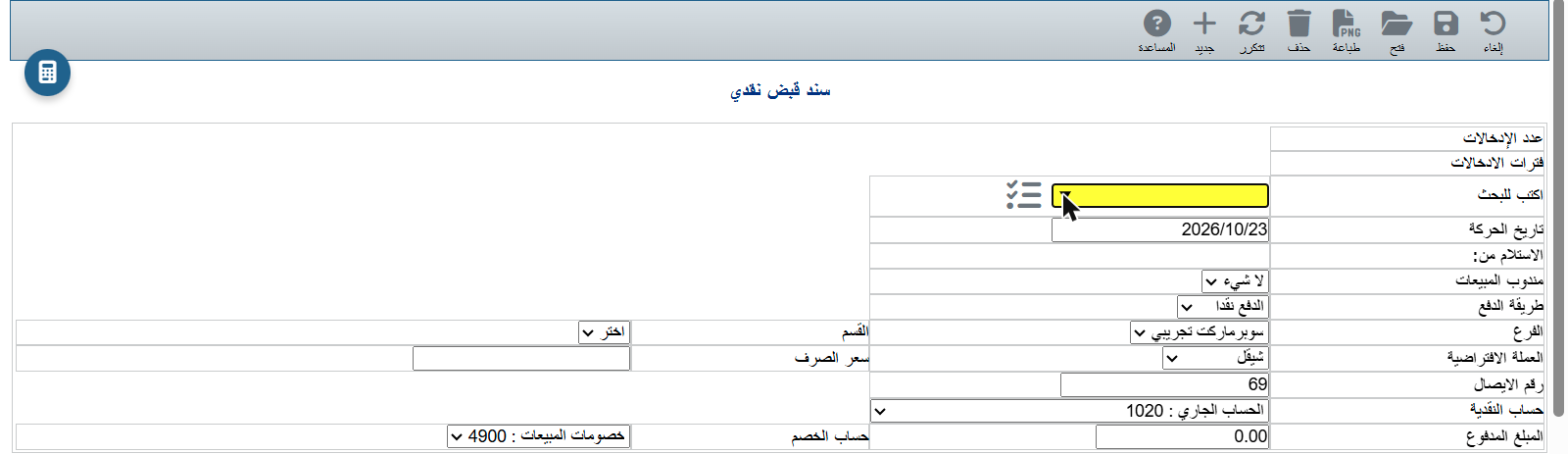
Type part of the customer name or ID in Search (the yellow box) and pick it from the list.
3Receipt details
- Date and Sales rep (optional).
- Payment method: cash / credit card / cheque.
- Branch, Currency and Exchange rate.
- Receipt number: assigned automatically; you can change it.
- Cash account: where the money went (Current account 1020, Cash box 1000, Incoming cheques 1022...).
- Amount paid.
4Line and discount
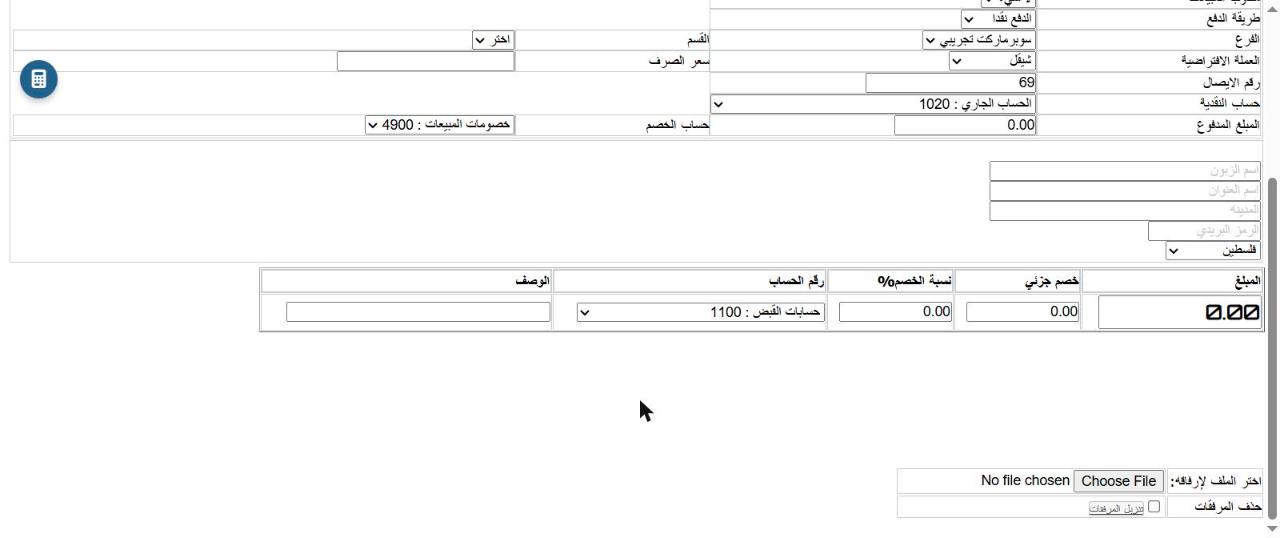
At the bottom you see the Amount and Account (Accounts receivable 1100). You can enter a Partial discount or Discount %, posted to the Discount account (Sales discounts 4900).
5Save or print
Click Save, or Print to give the customer a receipt.
💡 Attach a photo of the cheque or transfer with Choose file at the bottom of the voucher.