Stock Quantity Adjustment
Use an adjustment when the real count on the shelf differs from the system balance: damaged, lost or free goods, or an opening balance.
1Open the screen
From the menu: Inventory → Adjust stock quantity.
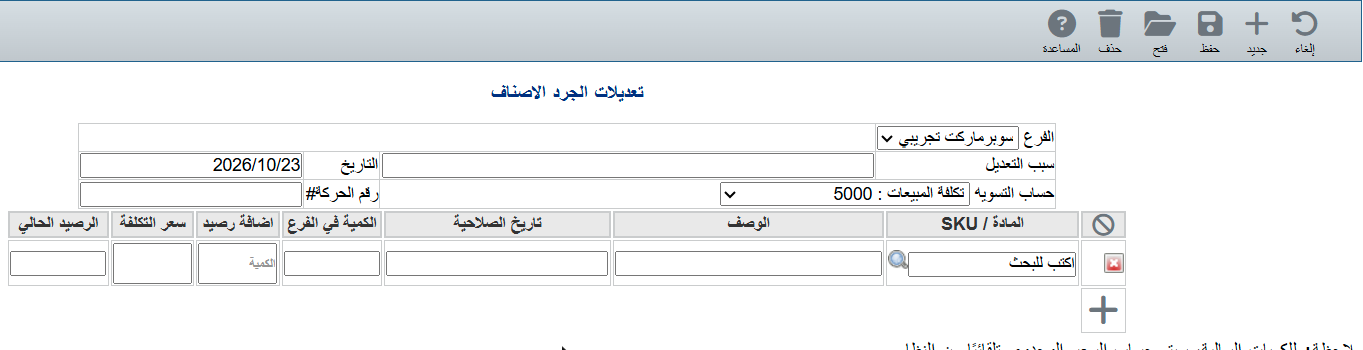
2Header
- Branch: where the goods are.
- Reason: for example "Year-end count" or "Damaged goods".
- Date: today by default; you can change it.
- Adjustment account: the account that records the difference (Cost of sales 5000 by default).
3Add the items
- Type the SKU or part of the name in SKU, or click the magnifier to search.
- Add quantity: enter it positive to increase and negative to decrease (for example -3 for three damaged pieces).
- Cost price: needed for increases only. For decreases the system calculates the cost using the item's cost method.
- Current balance: shows the balance after the adjustment so you can check before saving.
- Click + to add a line, and the red × to remove one.
4Save
Click Save. The adjustment gets a number automatically (such as ADJ-1) and is posted to the accounts.
💡 You can enter the opening balance of a new item directly from its card with the box icon next to Stock balance — it opens this same screen.